
Set up your company’s shared tech mailbox
A shared address, tech@ on your company’s domain, that every technical service signs up with. Bills, security alerts and sign-in emails go somewhere your company owns, not to one person’s inbox.
- Who
- Whoever looks after your company’s email
- Your time
- 10–20 minutes
- Waiting time
- None
- Cost
- Usually free: groups and shared mailboxes don’t need a paid licence
- Start
- Before any other accounts are opened
Why this matters
A website or app relies on several services, such as web hosting, a database, email sending and analytics. If each is registered to one person’s email, your company loses access when that person leaves or changes role. A shared address that both a company director and your developer receive keeps your company in control, and handing over at the end of a project is simple.
Have these ready
- Admin access to your company’s email, or the person who has it
- The email address your developer gives you, to add as a member
Step by step
Find out who runs your company’s email
You don’t need to know the answer in advance. Try these in order:
- How do you read your work email? Gmail with your company’s logo means Google Workspace. Outlook means Microsoft 365.
- Still unsure? Open Google’s free Dig tool, type your company’s domain and choose MX. Results ending in
google.commean Google Workspace;outlook.commeans Microsoft 365. Anything else is a different provider.
Then follow the matching route in the next step.
Create tech@ with your provider
Provider What to create Where Google Workspace A Google Group called “Tech” with the address tech@ admin.google.com›Directory›Groups›Create group Microsoft 365 A distribution list called “Tech” with the address tech@ admin.microsoft.com›Teams & groups›Active teams & groups›Add a group›Distribution Anyone else An alias or forwarder tech@ that forwards to you and to your developer Your email host’s control panel, under forwarding or aliases 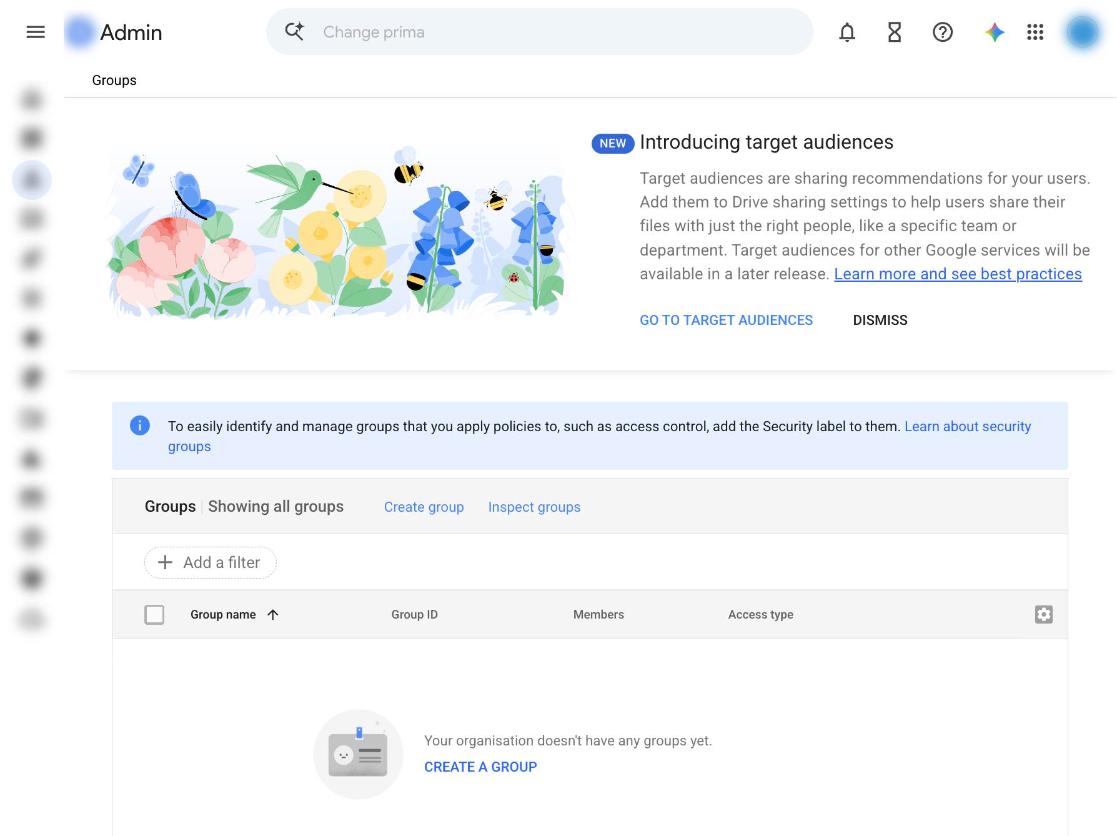
Google Workspace Groups: press Create group to make tech@. Let outside senders reach it
Services like Apple, Google and Stripe are outside your company, so the address must accept email from outside your organisation, or their emails will bounce.
- Google Group: in the group’s settings, set Who can post to Anyone on the web, and turn on Allow members outside your organisation.
- Microsoft 365 distribution list: tick Allow people outside of my organisation to send email to this distribution list.
Add the members
Add yourself, any other company director who should see these emails, and your developer.
- Google Group: Members›Add members and add your developer’s address as an outside member.
- Microsoft 365: first add your developer as a mail contact (Users›Contacts›Add a contact), then add that contact to the list.
TipIf the admin centre won’t let you add someone from outside, a 10-minute screen share with your developer will sort it.Test it
From a personal email account, send a message to tech@ with the subject “Test”. Check that you and your developer both receive it.
When you're done, send your developer
- The address, e.g. tech@ at your company’s own domain
- Confirmation that the test email reached you
If something goes wrong
- Test emails from outside bounce
- The outside-senders setting (step 3) isn’t on yet. It can take a few minutes to apply after you save it.
- Your developer doesn’t receive them
- Check that your developer was added as a member (Google) or as a mail contact on the list (Microsoft), and ask them to check spam.
- We don’t have admin access to our email
- Ask whoever set up your company’s domain or email, often an IT supplier or whoever built the website. Send them this page.
Steps checked against the providers’ public help pages on 30 September 2026. Screens change from time to time; if what you see looks different, the same steps usually still apply. Your ticks are saved in this browser only.
Sources: Google: Create a group · Google: Group settings · Microsoft: Create a distribution list · Google Dig tool
Need a hand?
JR Cov builds web and mobile apps for businesses of all sizes. If you’d rather not do this yourself, we can help set it up with you, always in your company’s name. Tell us what you’re planning.