
Try your app before it’s public, with TestFlight
TestFlight is Apple’s free app for trying test versions of an iPhone app. Your developer sends each new version there, you install it on your own iPhone, and you tell them what works and what doesn’t, with screenshots, straight from the app.
- Who
- Anyone at your company who’ll test the app
- Your time
- 5 minutes to set up, then as long as you test
- Waiting time
- About a day the first time Apple checks a version for outside testers
- Cost
- Free
- Needs
- An iPhone and an Apple Account
Why this matters
Testing on real phones finds the problems that matter before your company’s customers do. TestFlight keeps test versions separate from the App Store, so nothing you try is public.
| Type of tester | Who | How they join | Apple check first? |
|---|---|---|---|
| Internal | People with a role in your company’s App Store Connect, up to 100 | Added by your developer or the Account Holder | No, versions arrive straight away |
| External | Anyone else, up to 10,000 | Email invitation or a public link | Yes, Apple reviews the first version, usually within a day |
Most of your own staff will be external testers. That’s normal; it just means a short wait the first time.
Have these ready
- An iPhone on a recent version of iOS (the invitation says which)
- The Apple Account you use for the App Store on that phone
- The invitation email or public link your developer sends you
Step by step
Install TestFlight
On your iPhone, open the App Store, search for TestFlight (made by Apple) and install it. Sign in with the same Apple Account you use for the App Store.
Accept the invitation
How you join depends on what your developer sent:
You received… Do this, on the iPhone An email from TestFlight Open it on the iPhone and tap View in TestFlight A public link Tap the link on the iPhone TestFlight opens the app’s page. Tap Accept.
TipOpen the invitation on the iPhone itself. Tapping it on a computer only shows instructions.Install the test version
Tap Install. The app appears on your home screen with a small orange dot by its name, which marks it as a test version. Open it as normal.
When your developer sends a new version, TestFlight shows Update. To get new versions automatically, open TestFlight’s settings and turn on automatic updates.
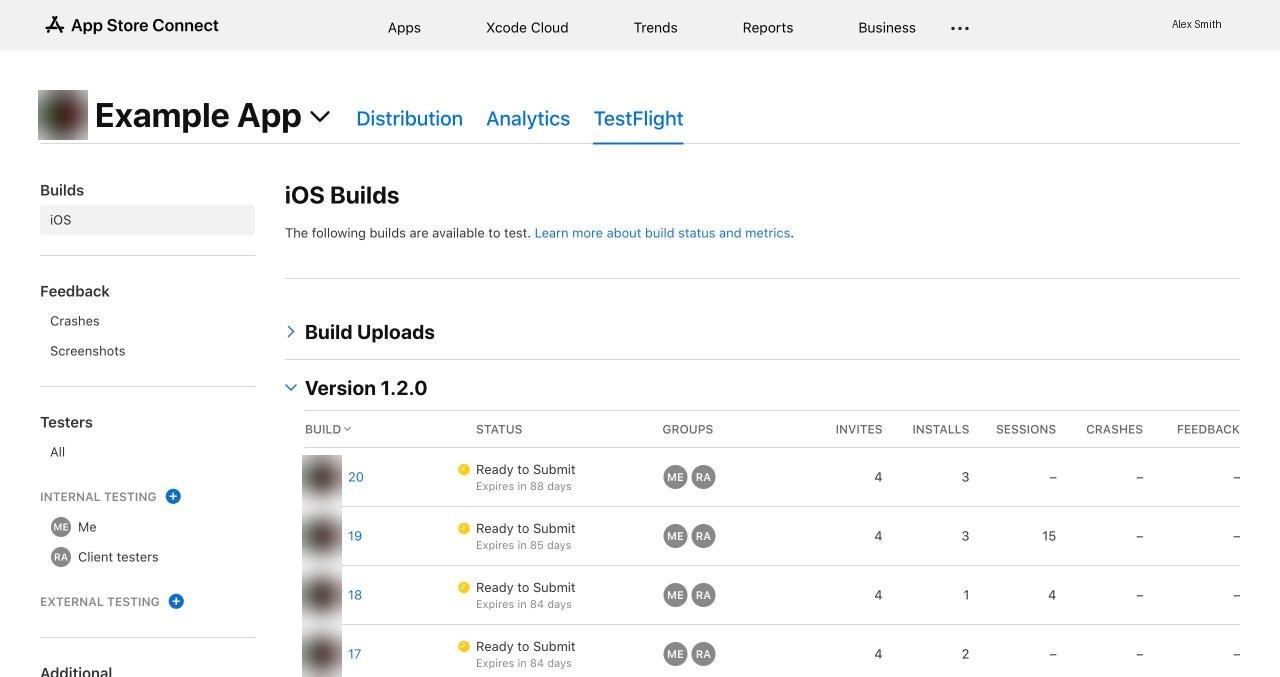
Your developer’s side: each version and which testers have it. Test what the release notes ask
Each version comes with a short What to Test note in TestFlight, and your developer may send the same list with their release notes. Start there, then use the app as a real customer would.
Watch outUse the test accounts your developer gives you, not real customers’ details. Test versions may talk to a test database that is wiped from time to time.Send feedback with a screenshot
The quickest way: while in the test app, take a screenshot (side button and volume up together). Tap the preview, choose to share it as beta feedback, add a sentence and send. It reaches your developer with your phone model and the app version attached.
You can also open TestFlight, choose the app and tap Send Beta Feedback. If the app crashes, TestFlight may offer to send a crash report; please say yes and add what you were doing.
Report anything bigger to your developer
TestFlight feedback is ideal for small things. For anything that stops you doing a task, report it to your developer as well, in the way you’ve agreed (a ticket, an email or a shared list), with:
- Where
- The screen, e.g. Sign-in or Checkout
- What happened
- What you saw, in plain words
- Steps
- What you tapped, in order
- Expected
- What you thought would happen
- Device
- e.g. iPhone 15, TestFlight build 12 (shown in TestFlight)
Know when versions expire
Each test version works for 90 days, then stops opening. Your developer normally sends newer ones long before then. If an old one expires, just install the latest from TestFlight.
To stop testing, open the app’s page in TestFlight and tap Stop Testing.
Tell your developer
- That you’ve installed the app (or that the invitation didn’t arrive)
- Feedback through TestFlight for small things
- A separate report for anything that blocks a task, with the build number
If something goes wrong
- The invitation email didn’t arrive
- Check spam, and check your developer has the email address of your Apple Account. A public link avoids this entirely; ask your developer for one.
- TestFlight says the app isn’t available
- Your iPhone may need a newer iOS (Settings › General › Software Update), or Apple is still checking the version. Your developer can tell you which.
- The app won’t open any more
- The version has probably expired after 90 days. Open TestFlight and install the latest one.
- I can’t find the feedback option after a screenshot
- Use Send Beta Feedback in TestFlight instead, and attach the screenshot from your photos.
Steps checked against the providers’ own screens and help pages on 3 October 2026. Screens change from time to time; if what you see looks different, the same steps usually still apply. Your ticks are saved in this browser only.
Sources: TestFlight: for testers · App Store Connect: TestFlight overview · App Store Connect: invite external testers · Apple: TestFlight
Need a hand?
JR Cov builds web and mobile apps for businesses of all sizes. If you’d rather not do this yourself, we can help set it up with you, always in your company’s name. Tell us what you’re planning.