
Enrol your company in the Apple Developer Program
This makes your company the owner of its iPhone app. The app will appear in the App Store under your company’s name, and your company keeps full control. You enrol once as the Account Holder, then invite your developer to build and test the app.
- Who
- The director who will be Account Holder
- Your time
- 30–45 minutes
- Waiting time
- A few days for Apple’s checks
- Cost
- 99 USD a year, in local currency
- Needs first
- A D-U-N-S number, a work email, a live website
Why this matters
Get this active early in the project, so the first test version of the app can go on test iPhones through Apple’s TestFlight as soon as it’s ready.
The Account Holder is the one person who can accept Apple’s legal agreements and renew the membership. When Apple updates an agreement, test builds stop until the Account Holder accepts it, so pick someone who reads their email.
Have these ready
- Your company’s D-U-N-S number (see the D-U-N-S guide), received at least 2 working days ago
- An Apple Account using your work email, with two-factor authentication on
- Your legal first and last name on that Apple Account. Nicknames or the company name cause delays
- Your company’s website live on your company’s own domain. A holding page or social-media link isn’t accepted
- If you aren’t the owner or founder: a colleague who can confirm you may sign contracts for your company
- A payment card for the annual fee
Step by step
Prepare the Apple Account you’ll use
Sign in at account.apple.com with your work email, or create an account with it. Check that the name is your legal name and that two-factor authentication is on.
TipThis Apple Account is personal to you as Account Holder. Use your own work email, not the shared tech@ address, because Apple verifies you as a person.Choose where to enrol
Apple Developer app (iPhone, iPad or Mac), where Apple offers enrolment in your region: it scans your photo ID and takes payment from your Apple Account, and the membership renews automatically.
Website: go to developer.apple.com/programs/enroll and choose Start your enrollment.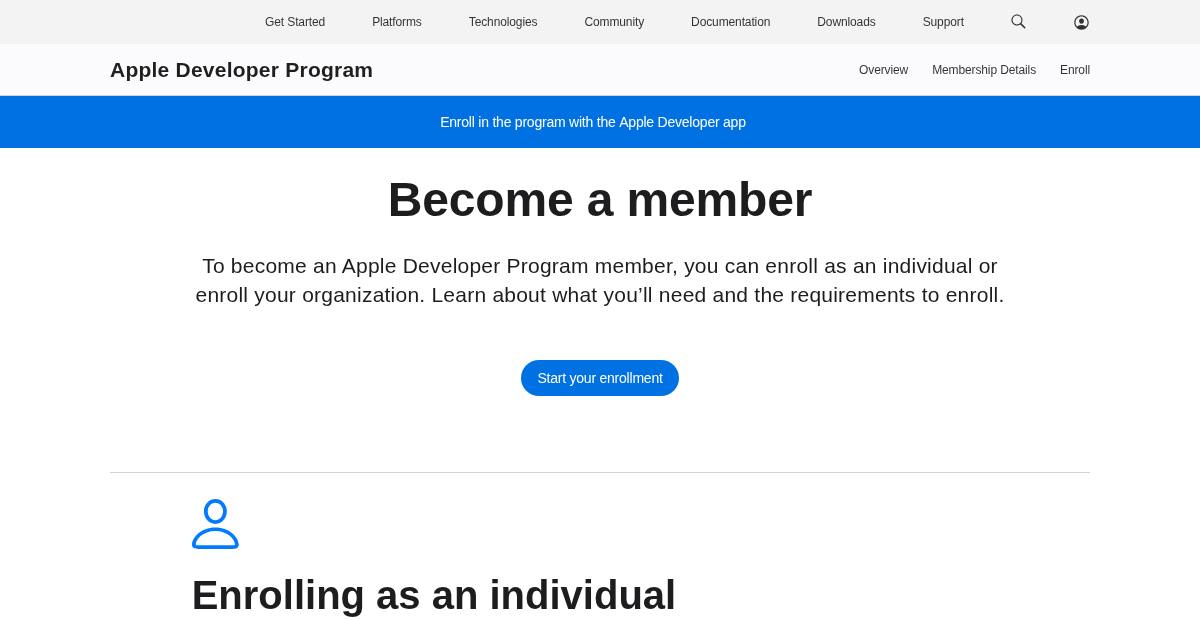
Apple’s enrolment page. “Start your enrollment” begins the website route; the blue banner offers the app route. Enter your own details
Give your legal first and last name and your phone number. If you use the app, it will ask you to scan a driving licence or passport.
Enter your company’s details
- Entity type
- Company / organisation
- Legal entity name
- Exactly as on the D-U-N-S record
- D-U-N-S number
- From the D-U-N-S guide
- Headquarters
- Address and phone
- Website
- Your company’s live website
- Signing authority
- Confirm you may bind your company to agreements; if you aren’t the owner, give a colleague who can confirm it
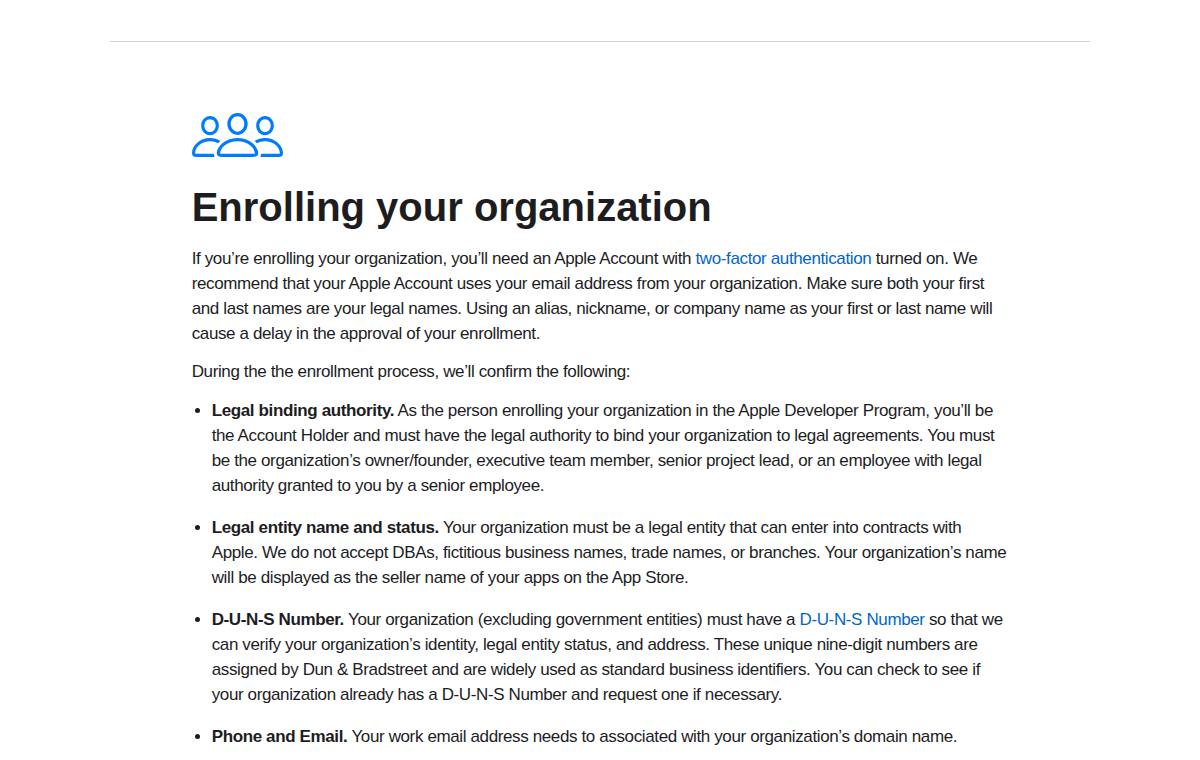
What Apple checks when an organisation enrols: signing authority, legal entity name, D-U-N-S number and a work email on your company’s domain. Answer Apple’s checks
Apple verifies your company and your authority. It may phone you or your named colleague, and it may ask for business documents certified as true copies. In the UK a solicitor or notary public can certify them.
Watch outYour company’s name as entered becomes the seller name shown in the App Store. Check the spelling before you submit.Accept the agreement and pay
When Apple has verified your company, it emails you a link to review the Apple Developer Program License Agreement and buy the membership: 99 USD a year, charged in local currency. Membership is usually confirmed within 24 hours of payment. If it isn’t, contact Apple and quote your Enrollment ID.
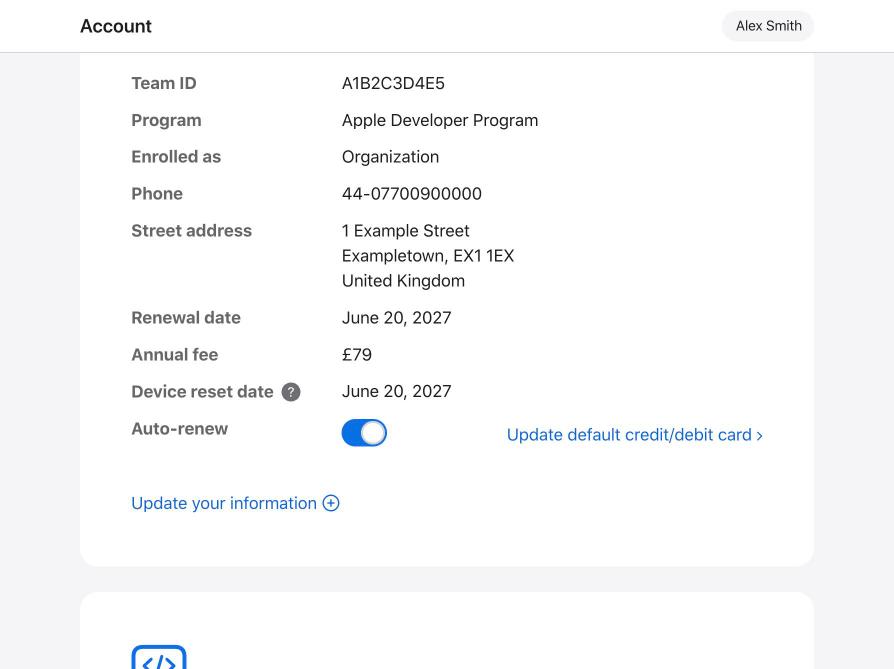
Membership details once enrolled. Check it says Organization, and turn on auto-renew so the app stays on the App Store. Invite your developer to the team
Sign in to App Store Connect and add your developer as a user.
appstoreconnect.apple.com›Users and Access›People›+- First and last name
- Your developer’s name
- The address your developer gives you
- Role
- App Manager (enough to create the app, run TestFlight and submit it; it can’t add or remove people)
- Additional resources
- Tick Access to Certificates, Identifiers & Profiles
Choose Invite. The invitation expires after 3 days, so tell your developer to expect it; you can resend it if needed.
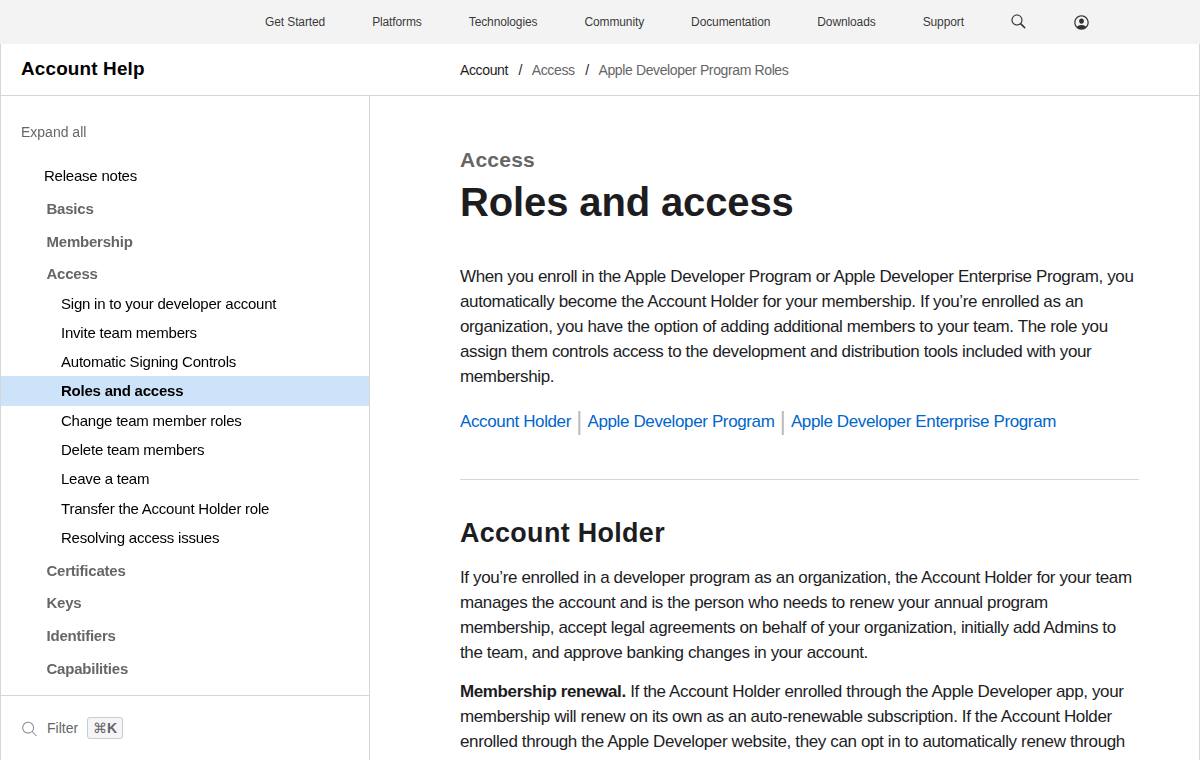
Apple’s roles page. The Account Holder alone renews the membership and accepts agreements; an Admin can do the day-to-day work. TipYour developer will send you the email address to use for invitations. Invitations always go to your developer directly; never share your own sign-in.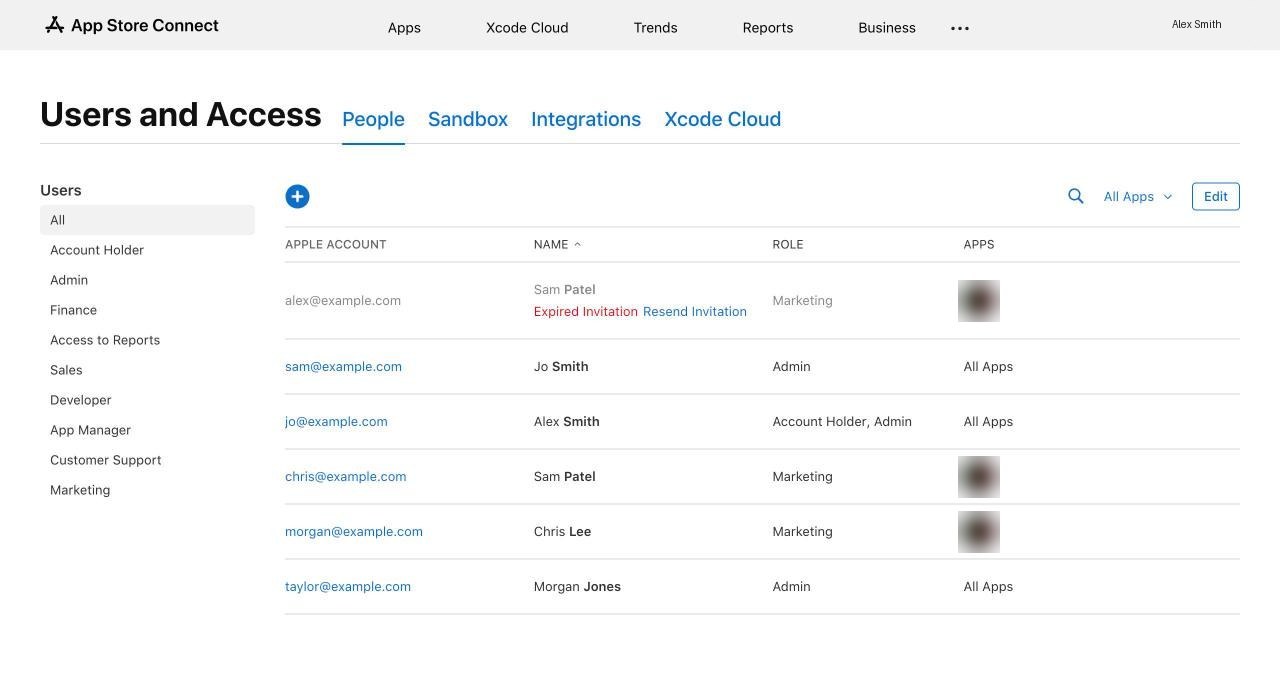
Users and Access in App Store Connect, where people are invited. 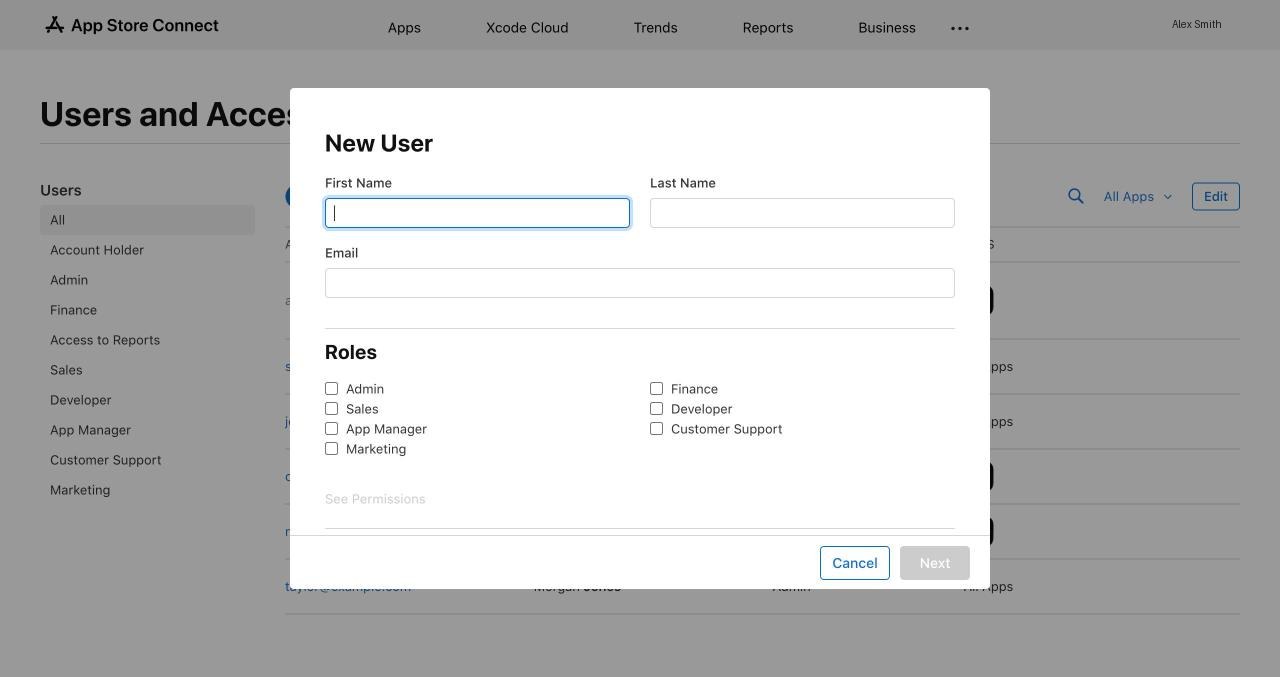
The New User form. Tick App Manager for your developer, then Next. Keep an eye out for agreement emails
From time to time Apple emails the Account Holder about a new or updated agreement. Sign in to App Store Connect and accept it within a day or two. Until you do, test builds can’t go out.
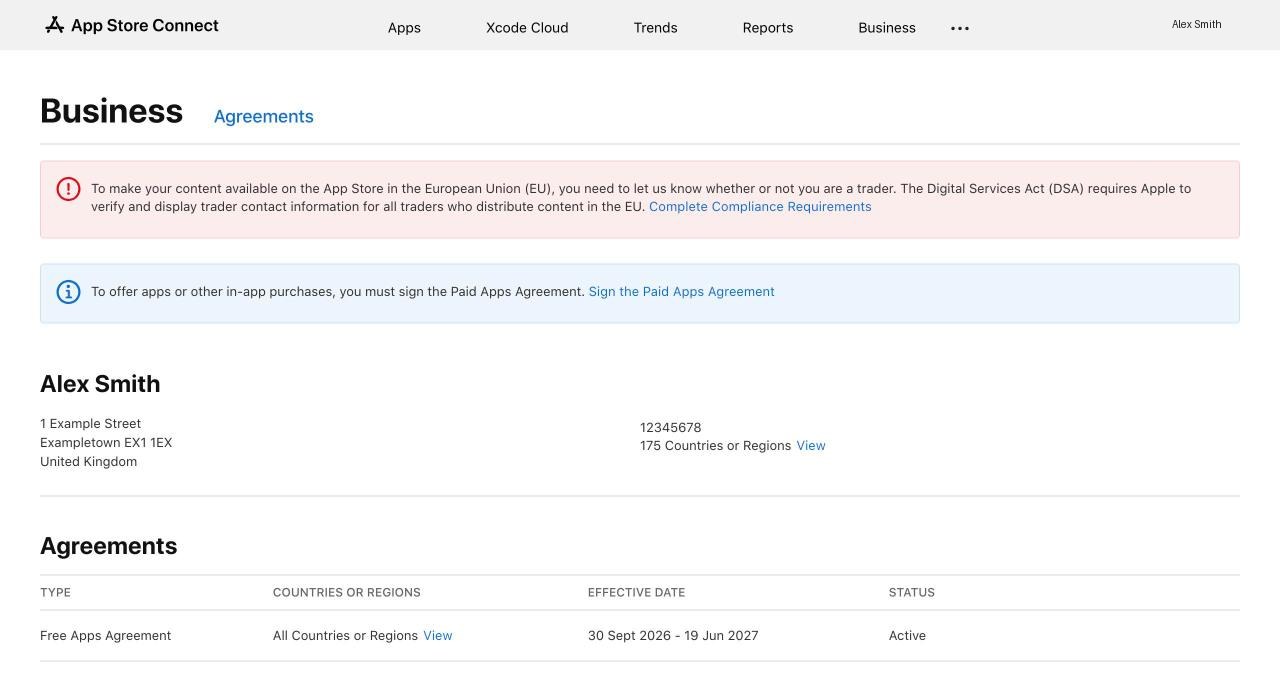
Agreements in App Store Connect. A red banner means something needs accepting or completing.
When you're done, send your developer
- A note that the membership is active
- Your company’s Team ID: a 10-character code on the Membership details page of your developer account (it isn’t secret)
- Confirmation that you’ve invited your developer as App Manager
If something goes wrong
- Apple says the D-U-N-S number can’t be found
- New numbers take up to 2 working days to reach Apple. If details differ from what you typed, correct them with D&B (D-U-N-S guide, step 4).
- Apple rejects the website
- It must be public, working and on your company’s own domain. A “coming soon” page from a domain registrar isn’t accepted; a simple one-page site is.
- I’m not the owner and Apple wants proof
- Give a senior colleague who can confirm you may sign contracts for your company, or ask the owner to enrol instead.
- Nothing after 24 hours of paying
- Contact Apple Developer Support with your Enrollment ID.
Steps checked against the providers’ public help pages on 30 September 2026. Screens change from time to time; if what you see looks different, the same steps usually still apply. Your ticks are saved in this browser only.
Sources: Apple: Enroll · Apple: Program enrollment · Apple: Enrolling in the app · Apple: Roles · App Store Connect: Add users
Need a hand?
JR Cov builds web and mobile apps for businesses of all sizes. If you’d rather not do this yourself, we can help set it up with you, always in your company’s name. Tell us what you’re planning.